
DevTools Widget
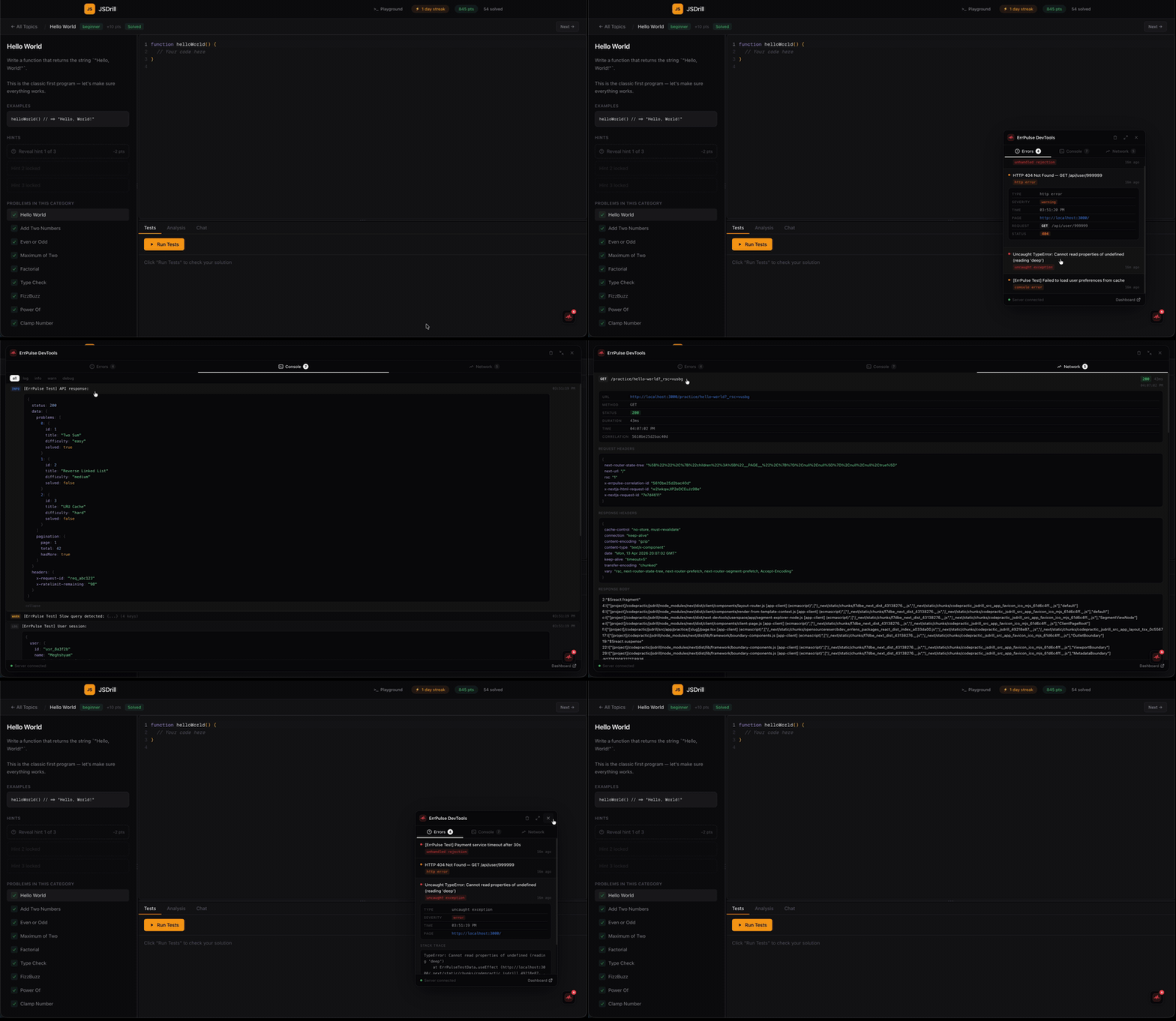
The ErrPulse DevTools widget is a floating in-app debug panel that lives directly inside your application. Think of it like React DevTools or Vue DevTools, but for errors, console logs, and network requests.
Quick Start
import { ErrPulseProvider, ErrPulseDevTools } from "@errpulse/react";

function App() {
  return (
    <ErrPulseProvider endpoint="http://localhost:3800" projectId="my-app">
      <YourApp />
      <ErrPulseDevTools />
    </ErrPulseProvider>
  );
}
A small floating icon appears in the bottom-right corner of your app. Click it to open the debug panel.
Props
| Prop | Type | Default | Description |
|---|---|---|---|
position | "bottom-right" | "bottom-left" | "top-right" | "top-left" | "bottom-right" | Initial corner position |
initialOpen | boolean | false | Start with the panel open |
enabled | boolean | undefined | Force on/off. Default: visible in development, hidden in production |
Errors Tab
Shows every captured error in real-time — uncaught exceptions, HTTP errors, React crashes, unhandled rejections, and more.
Each error shows:
- Severity dot (red for error/fatal, orange for warning, blue for info)
- Error message and type
- Relative timestamp
Click any error to expand and see:
- Error type, severity, and timestamp
- Page URL where it occurred
- Request method/URL and status code (for HTTP errors)
- Occurrence count and status (when server is connected)
- Component stack (for React errors)
- Server-provided plain-English explanation with fix suggestion
- Full stack trace
Console Tab
Live view of console.log, .warn, .info, and .debug output from your app.
- Each log entry shows its level (color-coded badge), message, and timestamp
- Filter by level using the filter bar at the top
- Logs containing objects show a collapsed preview like
{user: {...}, session: {...}} - Click to expand into a syntax-highlighted JSON tree with colored keys, strings, numbers, and booleans — just like browser DevTools
TIP
Enable console log capture in the provider:
<ErrPulseProvider endpoint="..." captureConsoleLogs={true}>Network Tab
Every HTTP request made via fetch() is captured with full detail.
Each request shows method, URL (truncated), status code (color-coded), and duration.
Click any request to expand and see:
- Full URL, method, status, duration, timestamp, correlation ID
- Request Headers — as a formatted JSON tree
- Request Body — formatted JSON or raw text
- Response Headers — content-type, cache-control, x-request-id, etc.
- Response Body — the full API response payload as a syntax-highlighted JSON tree
This is invaluable for debugging API issues without switching to browser DevTools.
Expandable Panel
Click the expand button (↗) in the header to maximize the panel to near-fullscreen. This makes it much easier to read large response payloads, stack traces, and deeply nested JSON objects.
Click the collapse button (↙) to return to normal size.
Draggable
Grab the floating icon and drag it to any position on screen. Your position is saved to localStorage and persists across page reloads.
The panel automatically positions itself relative to the icon — it opens to whichever side has more room.
Keyboard Shortcut
Press Ctrl+Shift+E to toggle the DevTools panel open/closed.
Shadow DOM Isolation
The entire widget renders inside a Shadow DOM, which means:
- Your app's CSS cannot affect the widget's appearance
- The widget's CSS cannot leak into your app
- No class name conflicts, no specificity battles
Hybrid Data Architecture
The DevTools widget uses a hybrid approach for maximum usefulness:
Local Capture (always works)
The widget subscribes to the SDK's internal event stream. Errors, logs, and network requests appear instantly in the panel — no server required. This is great for:
- Quick debugging during development
- Offline development
- When the ErrPulse server isn't running
Server Enrichment (when connected)
When the ErrPulse server is running (npx errpulse), the widget connects to it for richer data:
- Error explanations — plain-English descriptions of what went wrong and how to fix it
- Occurrence counts — how many times each error has occurred
- Error status — whether the error is unresolved, acknowledged, or resolved
- Real-time updates — new server events arrive via WebSocket
The footer shows connection status:
- 🟢 Green dot — connected to the ErrPulse server
- 🟠 Orange dot — server offline, running in local-only mode
Dashboard Link
When connected to the server, the footer shows a "Dashboard" link that opens the full ErrPulse dashboard at http://localhost:3800 in a new tab. Use the widget for quick debugging and the dashboard for deeper analysis.
Dev-Only by Default
The DevTools widget is automatically hidden in production (process.env.NODE_ENV === 'production'). It only appears in development mode.
To force it on in any environment:
<ErrPulseDevTools enabled={true} />To force it off:
<ErrPulseDevTools enabled={false} />